How the menu works
What a player sees, step by step, from the chat command to the new skin in their hands. Share this page with your players.
- 1
Open the menu
Type !skins or !inv in chat. The menu opens over the game with a mouse cursor; the match keeps running behind it. Section shortcuts such as !knife, !gloves or !agents open straight on that page.
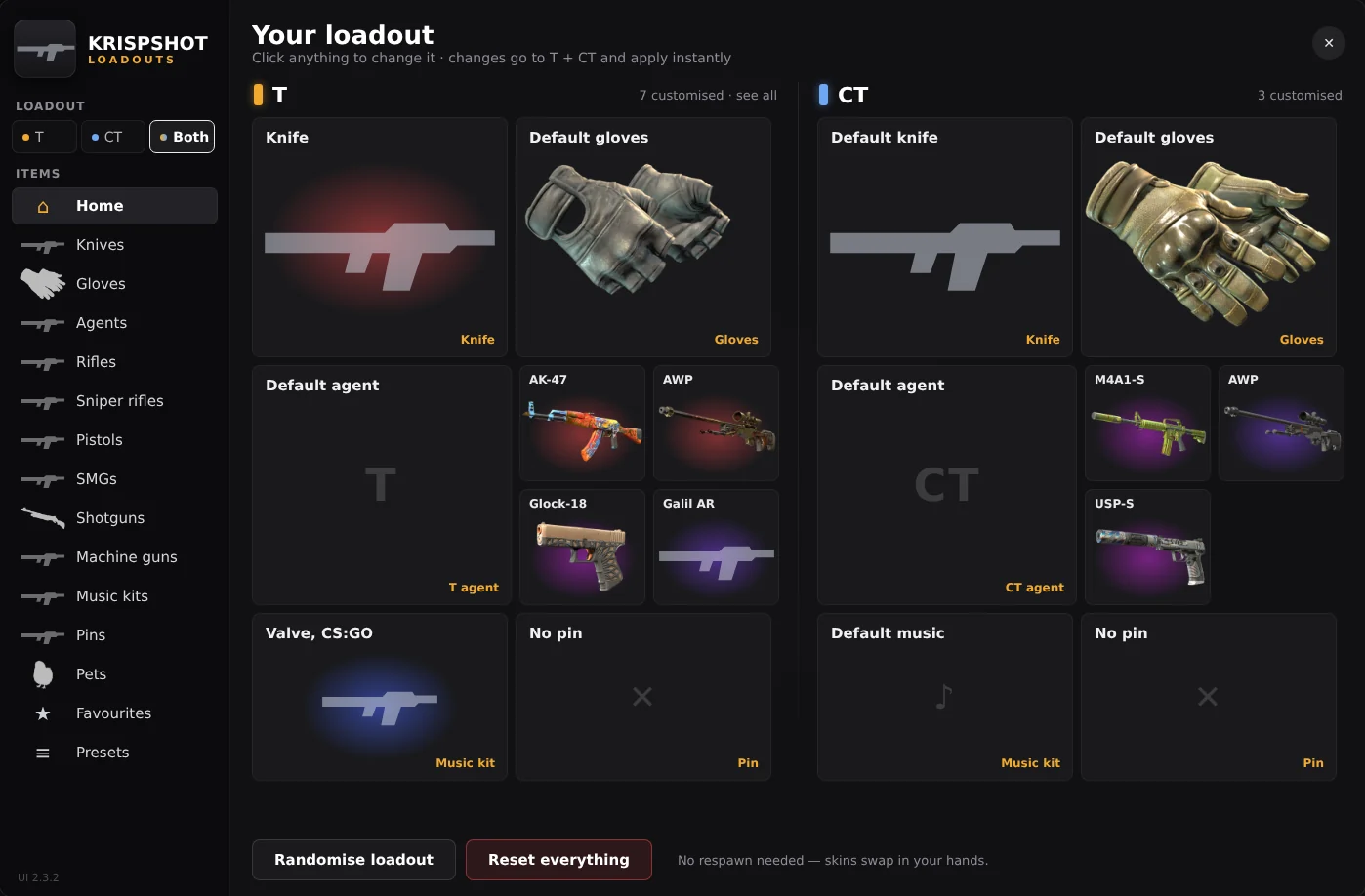
The first page is your loadout: the T side on the left, CT on the right. Each card shows what's equipped now. Click one to change it.
- 2
Choose the team
The T / CT / Both switch at the top left decides where your next change goes. Leave it on Both to use the same skin on each side, or pick a team for a split loadout: a Karambit on T and a Butterfly on CT, for example.
- 3
Find the item
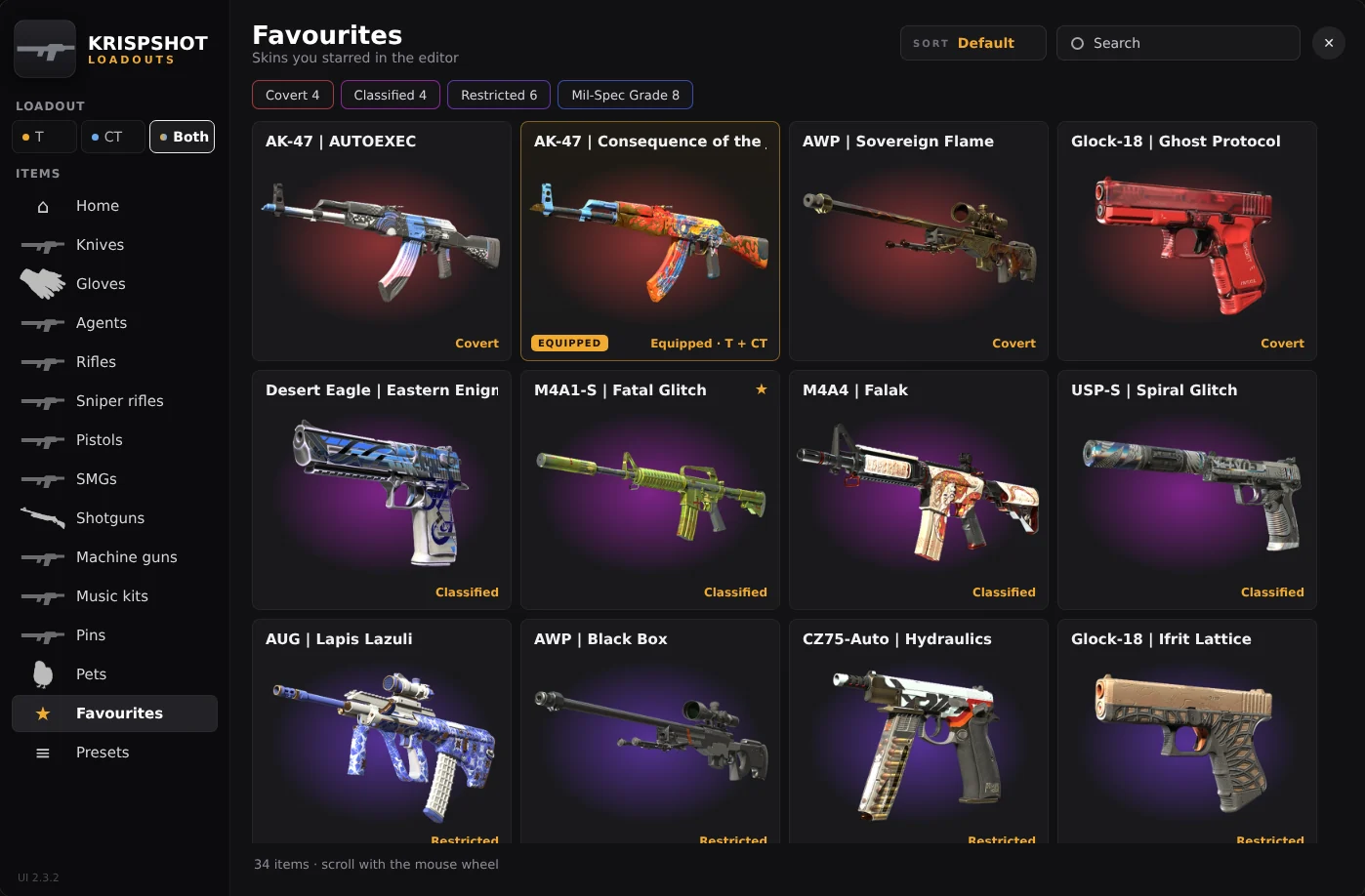
Pick a category on the left: knives, gloves, agents, a gun type, music kits, pins or pets. Lists scroll with the mouse wheel. Narrow them with the rarity chips, sort by rarity or name, or search.
Inside a gun type you can open one weapon, or All skins for every gun of that type with a chip per weapon.
- 4
Search with the keyboard or in chat
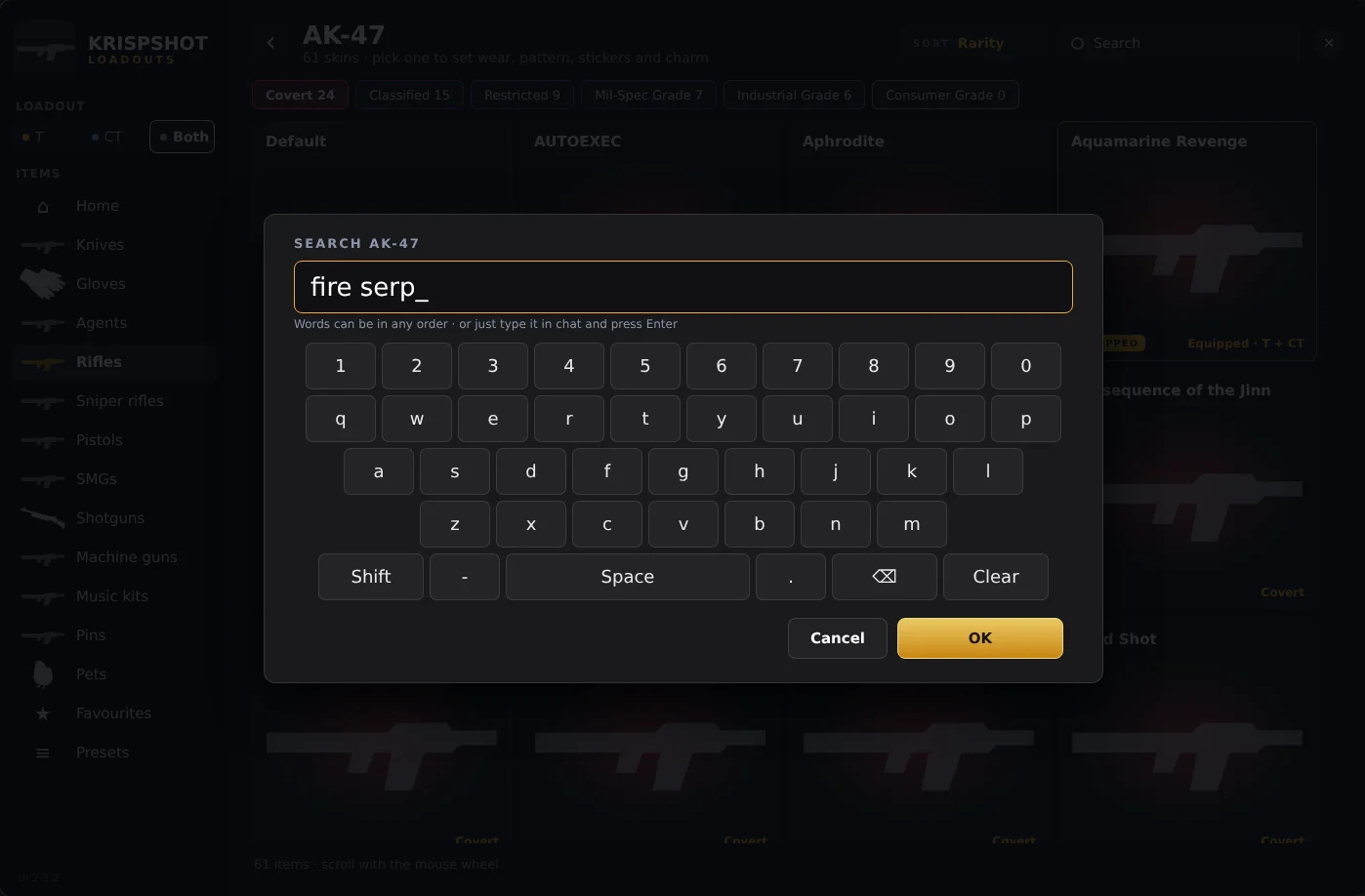
Click Search and an on-screen keyboard appears. Words can be in any order. If you'd rather use your real keyboard, type the search in chat and press Enter: the line goes to the menu and nobody else sees it. The same works for name tags.
- 5
Fine-tune the skin
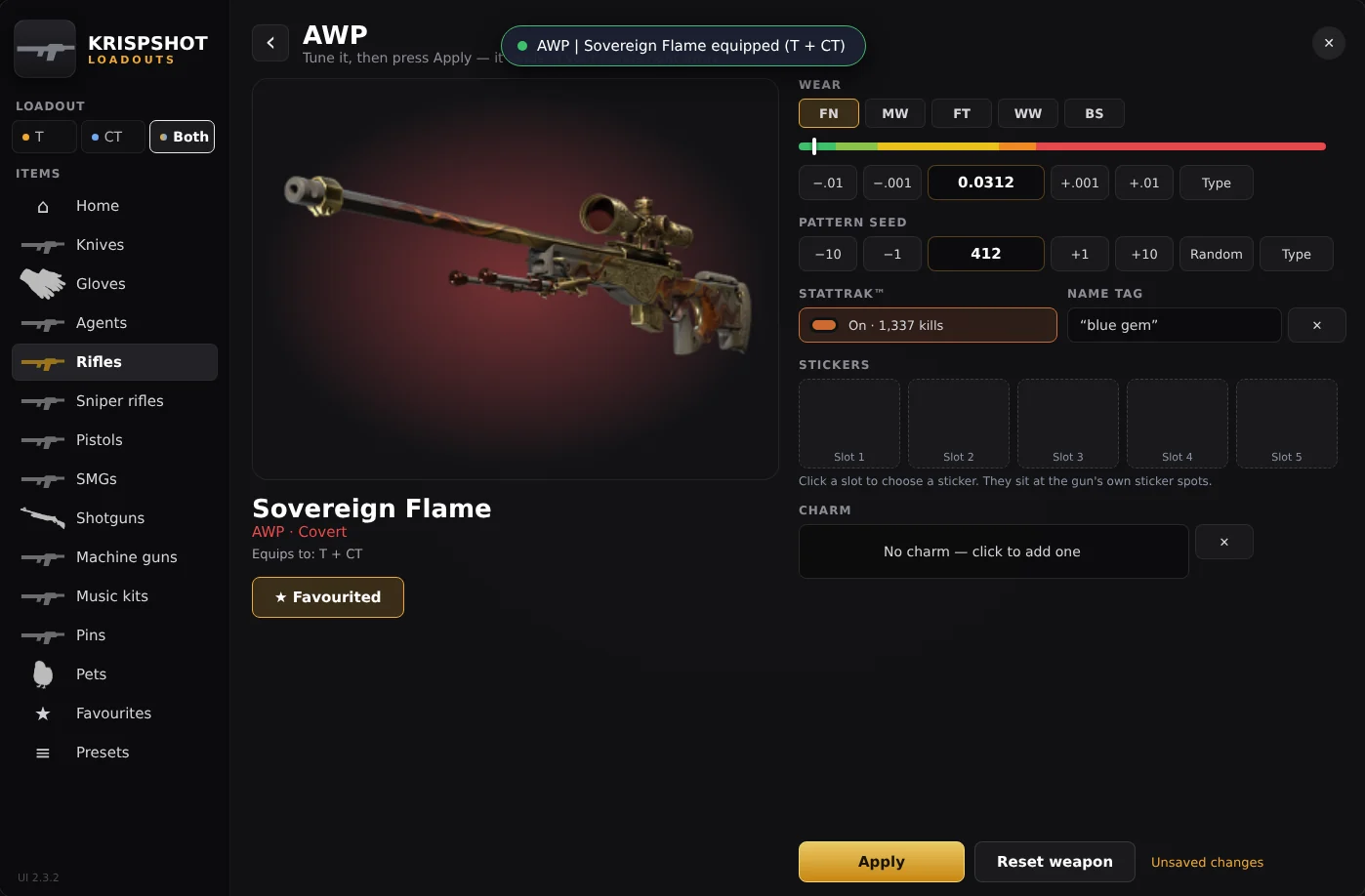
Clicking a skin opens the editor. Set the wear with the FN to BS buttons, nudge it by 0.01 or 0.001, or type the exact float. Change the pattern seed, turn StatTrak™ on, add a name tag, fill up to five sticker slots and hang a charm.
Star the skin to keep it in Favourites.
- 6
Press Apply
The item swaps in your hands immediately and a message at the top confirms it. You don't respawn, reconnect or type anything. The change is saved for your next visit while you keep playing.
- 7
Save it as a preset
Happy with a loadout? Save both teams as a preset under Presets, and switch between whole setups in one click later. Randomise gives you a surprise loadout; Reset everything goes back to default items. Both ask first.
- 8
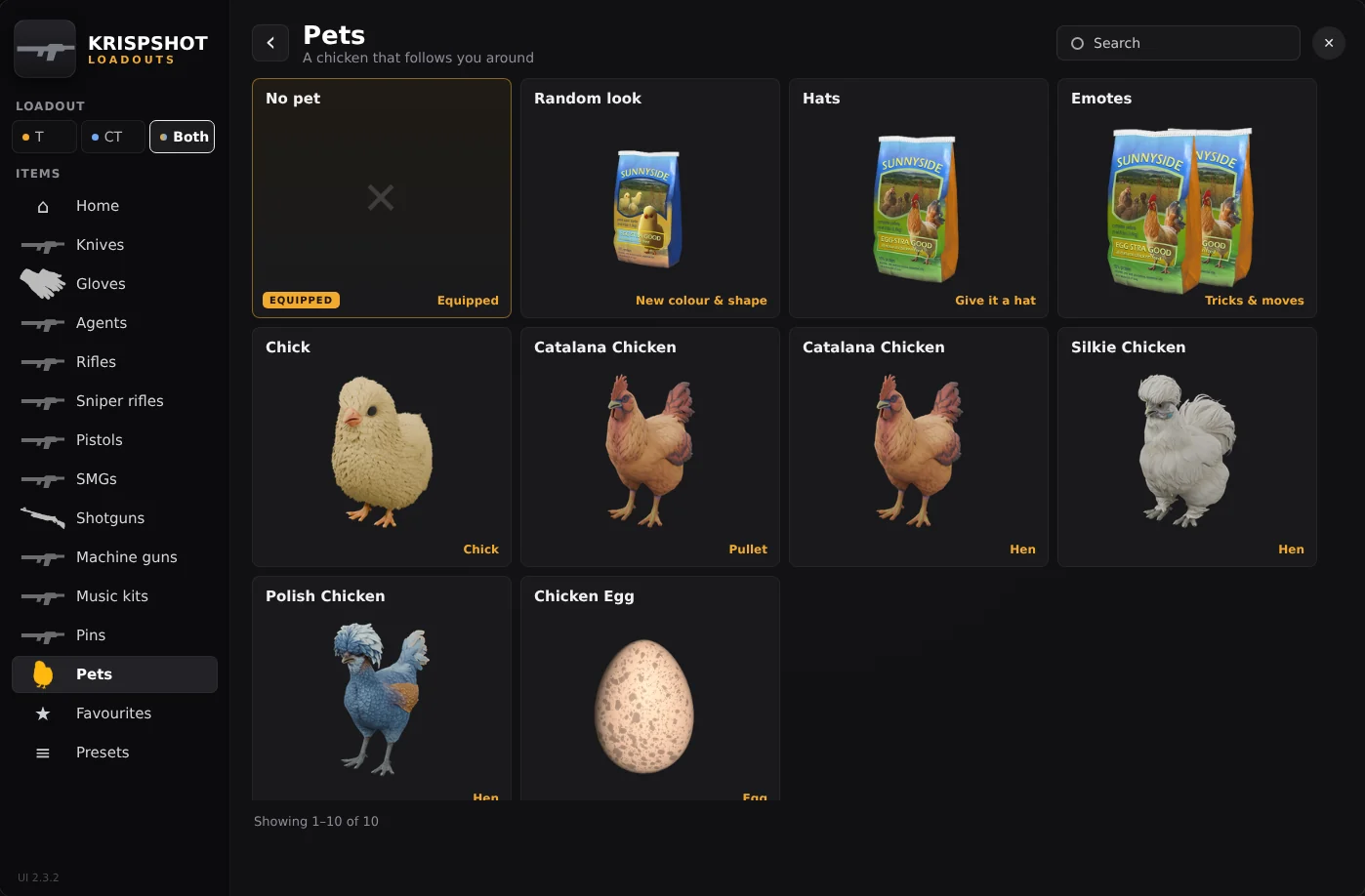
Get a pet
Under Pets, pick a chick, a hen or an egg to follow you around the map. Give it a random look, a hat, or make it do an emote.
Chat commands
These are the default names; your server may have renamed some of them.
| !skins !ws !inv !inventory !loadout !studio | Open or close the menu |
| !knife !gloves !agents !music !pins | Open the menu on that section |
| !stickers !float !seed !stattrak !nametag | Open the editor for the gun in your hands |
| !pet !pethat !petemote | Pets, pet hats and emotes |
| !wp | Reload your loadout from the database (after changing it on the website) |
Running a server? The install guide covers setup and the admin console commands.